Flippingbooks Frequently Asked Questions
Desktop Device
How do I turn the pages in a book?
The pages of a book can be turned by clicking the navigation arrows at the sides of the pages:
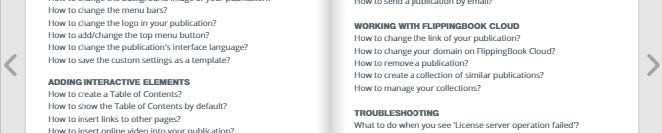
There are two buttons at the bottom corners of a book that will help you return to the very beginning or skip to the end:

You can always jump to a specific page if you type its number in the “Pages” box at the top of the book:
And you can click on the flipping corner of a page to move on to the next page:

How do I skip to a page I want?
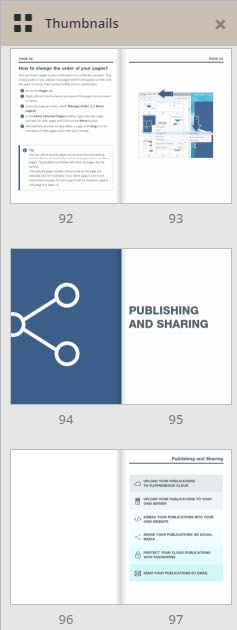
With the Thumbnails button  you can open a side panel with previews of all book pages that allow you to select a specific page if you have its visual in mind:
How do I create my personal notes?
This button  opens the Notes side panel. There you can create and manage your own comments. You will see the whole list of your notes on the panel and the Add Note button allows you to add a new comment on a page you’re currently viewing. Your notes are only visible to you. They are stored on your end, in your browser’s data, so if you open your book in a different browser, you won’t see your Notes anymore:
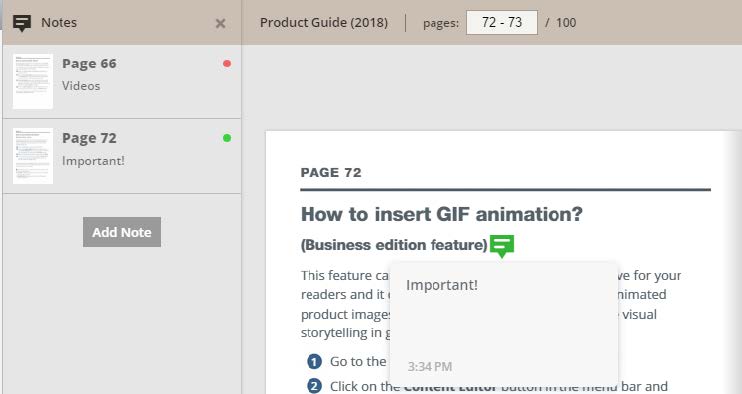
There is also a comment button next to the page you’re currently reading:
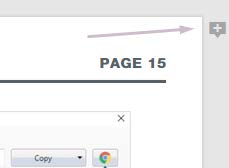
It is also possible to choose the “Add Note” option in the menu list that is visible when you right-click anywhere in the book.
How do I zoom in and out of the page and enable the Fullscreen mode?
If the text in the initial view of the book seems too small, you can Zoom a page  , which will change the display to Slide mode—meaning that the zoomed pages can now be read one at a time and you can switch between the pages without going back to the default zoom. You can also zoom in and out by double-clicking a page. The level of zoom can be modified by a toggle:

Fullscreen button  lets you open a book on the entire screen, and this mode can also be enabled/disabled by pressing F11 on your keyboard.
How do I search for text in a book?
If you see a Search button in the upper right corner of the book you’re reading  , then it’s possible to do a fulltext search there. If you click on a button and enter a search query in the field, the results will be listed on a side panel and the search term will be highlighted where it appears on the pages:

If you enter two or more words, results containing all of the words will be shown at the top:
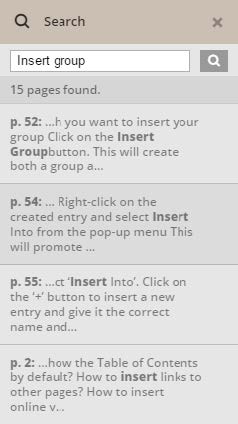
The search is able to bring up individual words contained in your search query, but it is recommended to enter the phrase you’re searching for in full.
Is there a "right-click" menu?
It is possible to right-click anywhere in the book and bring up a menu that includes the options of the Notes, Zoom, and Fullscreen buttons.
Mobile Device
Does it look different?
When you open a book on a mobile device, you will see its mobile version instead of the desktop one. While these versions are mostly similar in their functionality, there are some differences.
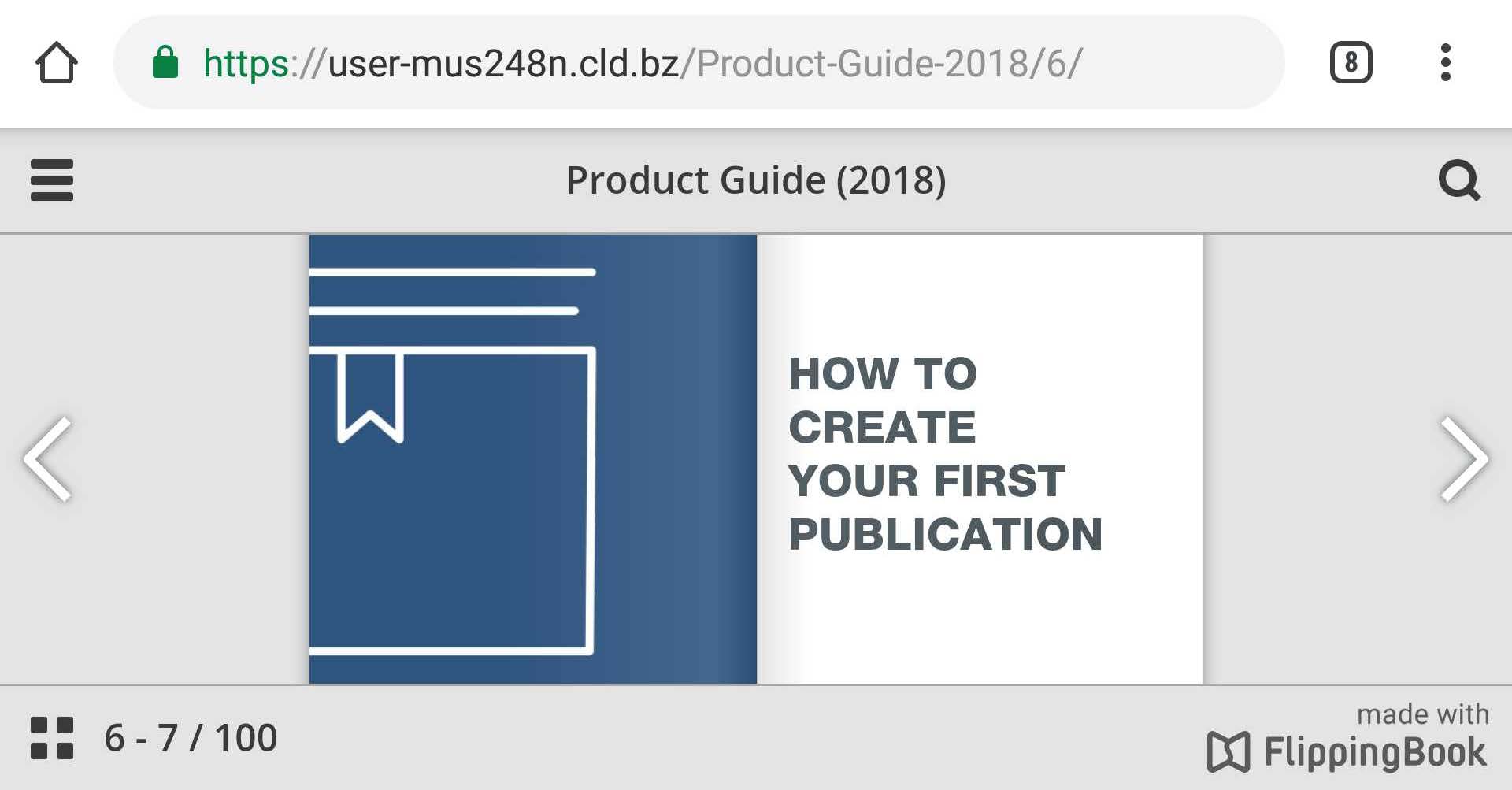
In the mobile version, a book is shown in a one-page mode by default, but if your phone/tablet goes into the landscape mode, two pages will be shown at the same time:
How do I turn the pages in a book on mobile?
If you tap on the arrows at the sides, you’ll be able to flip the pages, but you can also swipe with your finger, just as if you were reading a regular printed book. You can bring up or hide the interface of a book by tapping the screen once. You can also zoom in and out of any spot on a page by tapping on it twice.
How do I see an overview of book pages on mobile?
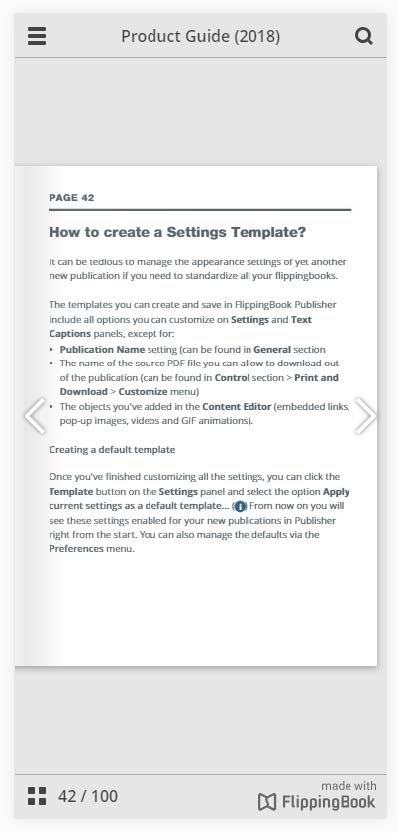
The Thumbnails button is located in the lower left corner of the screen, and brings up the same menu as in the desktop version:
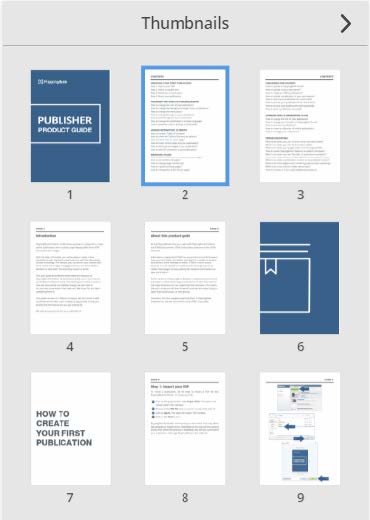
Tap on a preview of the page to jump to it.
How do I search for an item on mobile?
The Search option is located at the upper right corner, just as it is in the desktop version. Tap on the magnifying glass icon and enter your search term in the search bar to get the results:
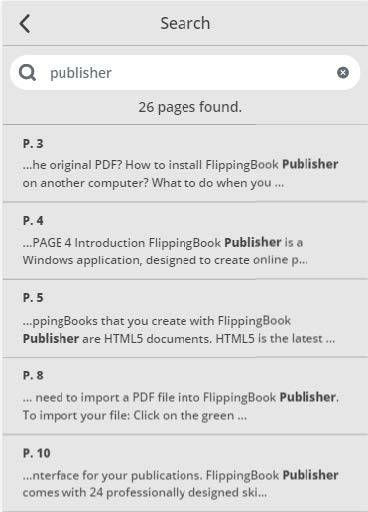
Click on the arrow in the upper left corner to get back to the book. You can then return to your search results afterwards by tapping on the magnifying glass icon again.